December 2017 Update
Introducing Single Sign On
- Better Utilize Existing Features
- Enabling Single Sign On
- Adding Your Microsoft Tenant
- Login With Facebook Or Google+
Advanced Features
- Connecting Multiple Tenants
- Require Microsoft Login


December 2017
> Introducing Single Sign On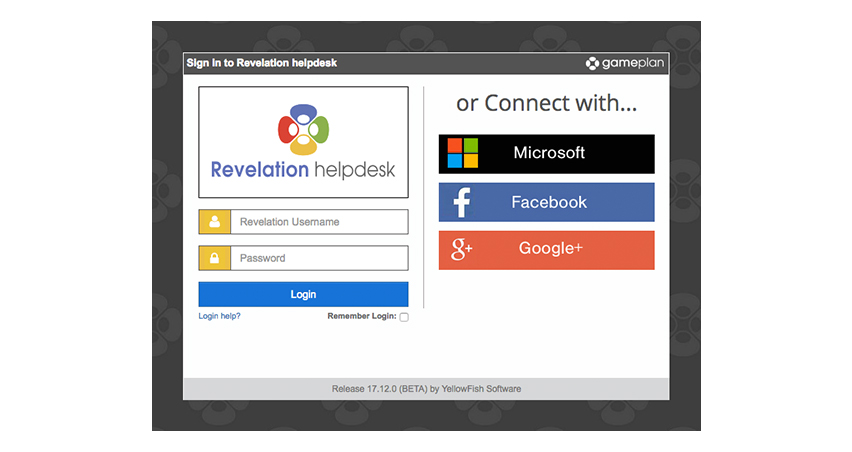
Introducing Single Sign On
You can now choose to allow your users to login using a Microsoft business account (Microsoft 365 or Azure), Facebook or Google+.
Configuration Required
December 2017
> Introducing Single Sign On
December 2017
> Better Utilize Existing Features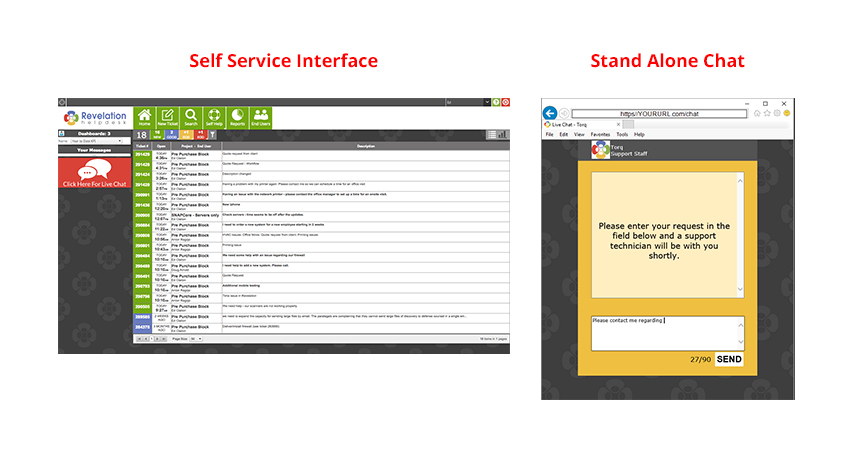
Better Utilize Existing Features
With no need for your end users to remember their login credentials, single sign on makes existing features you may not utilize today, easy to use.
December 2017
> Better Utilize Existing Features
December 2017
> Enabling Single Sign On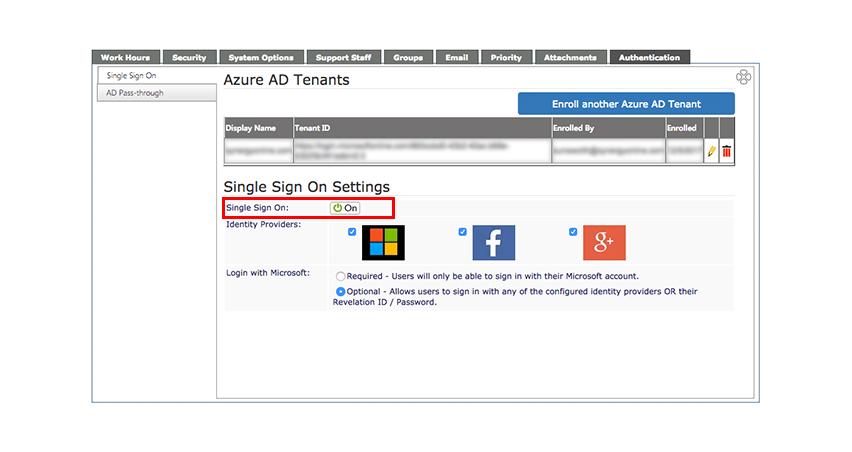
Enabling Single Sign On
To turn this feature on: Go to your Admin settings, select the Authentication Tab and click the "On" button next to "Single Sign On".
System admin rights required
December 2017
> Enabling Single Sign On
December 2017
> Adding Your Microsoft Tenant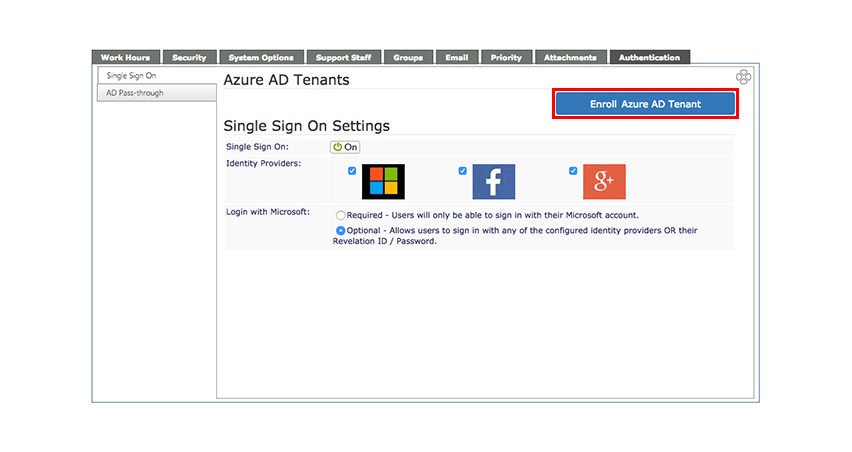
Adding Your Microsoft Tenant
Before you can login with your Microsoft business account, you will first need to enroll your Microsoft tenant.
Your on-premise domain must be synchronized with Microsoft Azure AD. If your business is already in Microsoft 365, then your are all set.
December 2017
> Adding Your Microsoft Tenant
December 2017
> Adding Your Microsoft Tenant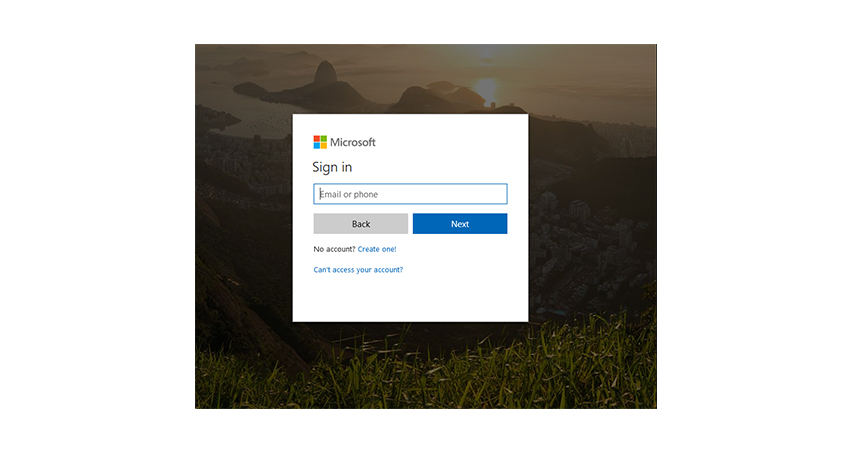
Adding Your Microsoft Tenant
When enrolling your tenant you must be a Microsoft or Azure admin when connecting Revelation to your tenant.
December 2017
> Adding Your Microsoft Tenant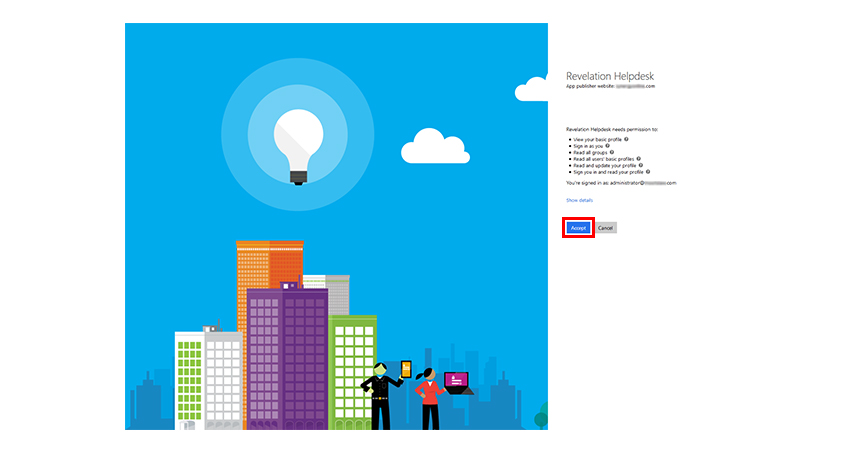
Adding Your Microsoft Tenant
Step 1.
Login with your Microsoft admin credentials Step 2. Click Accept
December 2017
> Adding Your Microsoft Tenant
December 2017
> Login With Facebook Or Google+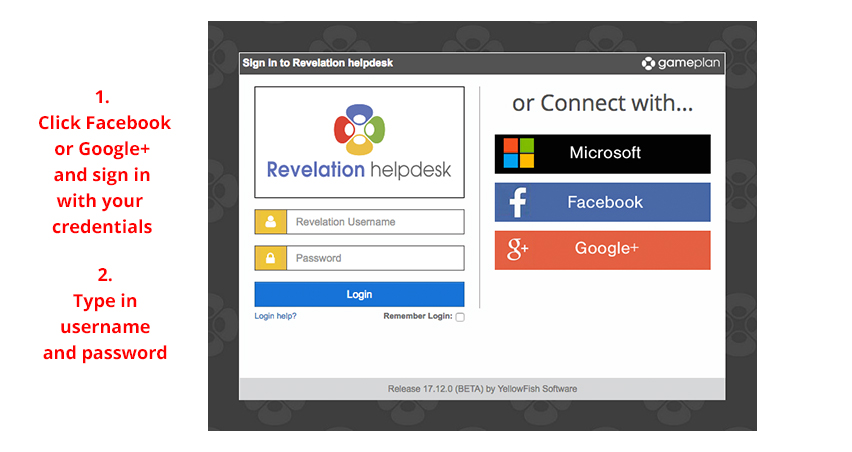
Login With Facebook Or Google+
To login with your Facebook or Google+ credentials follow the directions on the screen. You will only need to do this once.
December 2017
> Login With Facebook Or Google+

 STOP!
STOP!
Are you an advanced user? if so, we've created these
powerful advanced features to make your life more exciting.
if you are excited enough
move along.

December 2017
>Connecting Multiple Tenants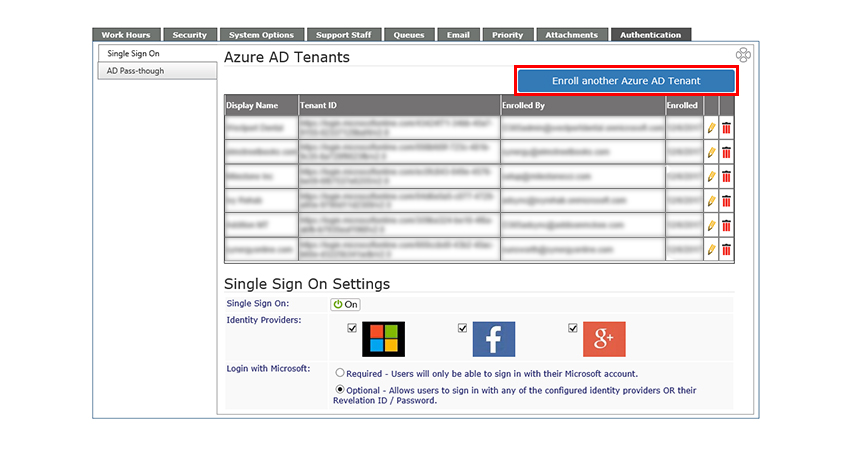
Connecting Multiple Tenants
If your company uses multiple Microsoft tenants, you will be able to add them all in the Admin area.
December 2017
> Connecting Multiple Tenants
December 2017
> Require Microsoft Login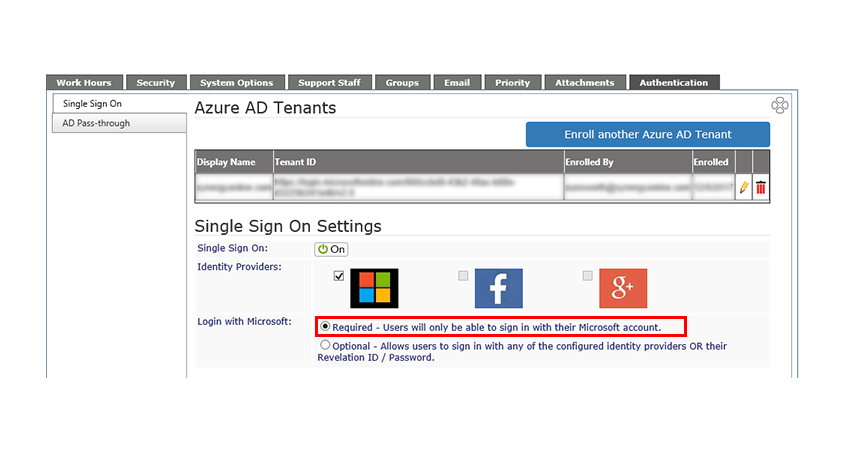
Require Microsoft Login
You can make Microsoft login required for your users. Just select "Required" next to "Login with Microsoft" in your authentication admin settings.
December 2017
> Require Microsoft Login